
Depending on your assigned permissions, you may have access to the Admin Dashboard, Manager Experience, or both.
This article explains how to access these tools, monitor training progress, filter learner records, review individual course completions, and take action through learner enrollment and messaging.
1. Understanding Your Reporting Options
The Lionel University Global Learning Portal provides two primary reporting experiences.
Admin Dashboards
The administrative interface provides centralized reporting for training activity across your authorized learner population.
Depending on your access and dashboard configuration, you can monitor:
- Total users and course enrollments
- Overall course completion rates
- Average time spent learning
- Enrollment activity and training status
- Department-level training performance
- Course activity and learner engagement
- Additional reports and training performance indicators
Manager Experience
Manager Experience is a separate workspace designed specifically for managers, supervisors, and team leaders who oversee learner progress.
It allows authorized managers to:
- Review training activity across their assigned teams
- Monitor enrollment and completion status
- View individual learners and their course progress
- Identify overdue or incomplete training
- View direct and indirect reports, when permitted
- Enroll learners in eligible courses, when enabled
- Send messages to assigned learners, when enabled
Which should I use?
Use the Admin Dashboards for broader training oversight and reporting. Use Manager Experience for day-to-day monitoring and management of individual learners and their training progress.
Both experiences may be available to the same user, depending on assigned permissions.
2. Accessing and Using the Admin Dashboards
The Admin area provides reporting dashboards that help authorized users monitor learner activity, course enrollments, and training performance.
How to Access Your Dashboard
- Sign in to your organization's Lionel University Global Learning Portal.
- Open the Admin area.
- Navigate to Dashboards.
- Select the dashboard available to your account.
Depending on your permissions, you may have access to multiple dashboard configurations.
Administrator Dashboard
The Administrator Dashboard provides an expanded reporting view that may include:
- Total number of users
- Overall completion rates
- Completion rates by course type
- Enrollment status by department and course
- Learner efficiency and training activity
- Saved reports and additional reporting widgets
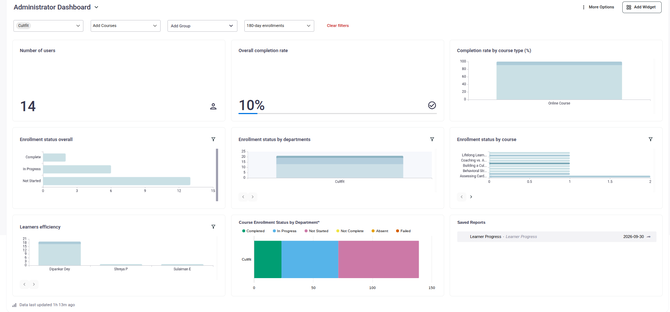
Figure 1a. Administrator Dashboard showing training metrics, course completion activity, departmental reporting, and saved reports.
Manager Dashboard
The Manager Dashboard provides a more streamlined view of training activity, including:
- Number of users
- Average time spent learning
- Overall completion rate
- Total course enrollments
- Enrollment status by department
- Learner activity and upcoming sessions
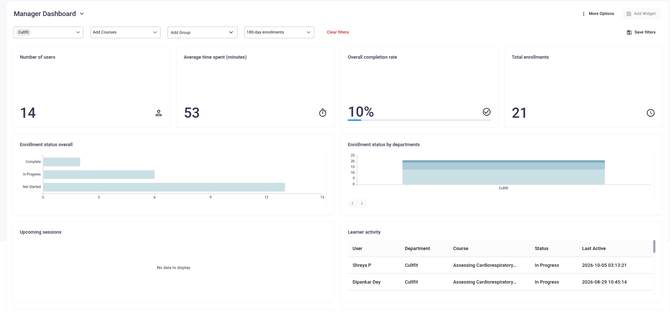
Figure 1b. Manager Dashboard displaying learner counts, enrollments, training progress, and activity reporting.
Using Dashboard Filters
Depending on your dashboard configuration, reporting can be filtered by:
| Filter | Purpose |
|---|---|
| Department | Review training activity for a specific department |
| Course | Focus reporting on an individual course or training program |
| Group | Monitor a designated group of learners |
| Enrollment Period | View activity within a selected time frame |
Use these filters to narrow your reporting to the learners, courses, and periods most relevant to your responsibilities.
Tip: If a dashboard appears empty or displays fewer enrollments than expected, review your selected filters and enrollment period first.
Available dashboards, widgets, and reporting options may vary based on your organization's configuration and your assigned permissions.
3. Accessing Manager Experience
Manager Experience is a separate workspace that provides managers with a simplified way to monitor assigned learners.
You do not need full administrative access to use Manager Experience, provided the feature is enabled for your account.
How to Open Manager Experience
- Sign in to your organization's Lionel University Global Learning Portal.
- Open the Account menu in the upper-right corner.
- Select Manager Experience.
- The platform opens your Manager workspace.
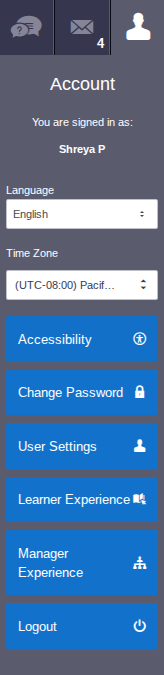
Figure 2. Access Manager Experience through the account menu.
Once inside Manager Experience, you can navigate between the Overview and Learners sections to review training activity and individual learner progress.
Note: If you do not see Manager Experience in your account menu, your account may not have the necessary permissions enabled.
4. Reviewing Your Team's Training Overview
The Overview dashboard provides a summary of training activity across your assigned learners.
It displays course enrollment counts organized by completion status and training priority.
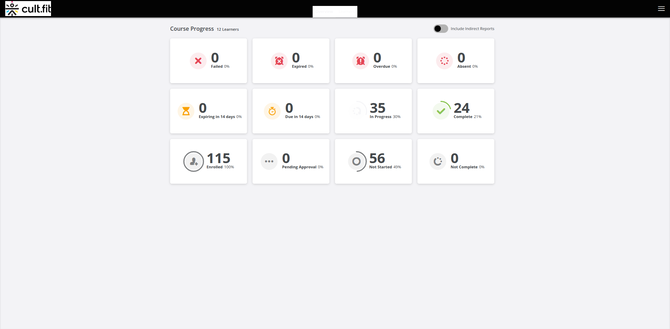
Figure 3. Manager Experience Overview displaying course enrollment statuses, completion counts, and training priorities.
Understanding Enrollment Statuses
| Status | Description |
|---|---|
| Enrolled | Learner has an enrollment in a course |
| Not Started | Learner has not started the assigned course |
| In Progress | Learner has started but has not completed the course |
| Complete | Learner has successfully completed the course |
| Not Complete | Course has not been successfully completed |
| Failed | Learner has an unsuccessful course result |
| Absent | Learner has an absence recorded |
| Pending Approval | Enrollment requires approval before proceeding |
Understanding Training Priorities
The Overview may also identify training that requires attention.
| Priority | Description |
|---|---|
| Overdue | Training is past its assigned deadline |
| Due in 14 Days | Training has an upcoming deadline |
| Expired | Training or enrollment access has expired |
| Expiring in 14 Days | Training is approaching its expiration date |
These indicators help managers identify learners who may require reminders, coaching, or additional support.
Understanding the Dashboard Counts
Overview cards represent course enrollment activity rather than necessarily representing unique learners.
For example, one learner enrolled in multiple courses may contribute to multiple enrollment counts.
Tip: Select an available status card to review matching learners. Direct-report status cards support navigation to the Learners view.
5. Monitoring Individual Learners
The Learners workspace allows managers to review assigned learners and their individual training records.
Viewing Your Learner List
- Open Manager Experience.
- Select the Learners tab.
- Review the list of learners assigned to your management scope.
- Use the available filters to narrow your results or expand an individual learner to view additional details.
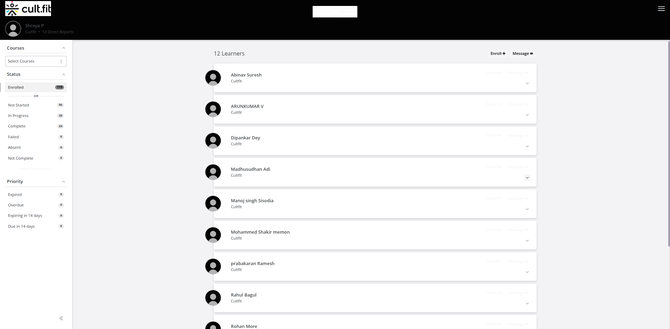
Figure 4a. Learners workspace displaying assigned learners, enrollment status filters, and training priorities.
The learner list provides access to individual learner records and allows managers to review training activity within their assigned reporting population.
Reviewing an Individual Learner's Training Records
To see detailed progress for an individual learner:
- Open Manager Experience → Learners.
- Locate the learner you want to review.
- Click the downward arrow on the right side of their record.
- Review their course enrollments, completion percentages, enrollment statuses, and relevant training dates.
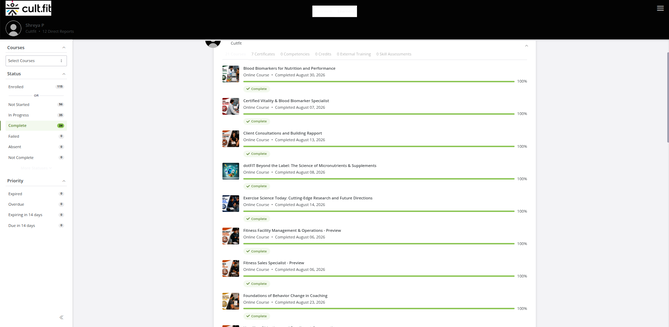
Figure 4c. Expanded learner record displaying individual courses, completion dates, progress percentages, and training status.
Each course may display:
- Course name and type
- Enrollment status
- Course progress percentage
- Enrollment or completion date
- Training priority or deadline
Additional learner records may include:
- Certificates
- Competencies
- Credits
- External training
- Skill assessments, when enabled
Note: Progress percentages are not displayed for instructor-led courses in the same way as supported online courses.
6. Filtering Learners by Course, Status, or Priority
Manager Experience allows you to narrow your learner list to identify specific training activities, completion statuses, or learners who require attention.
Available Filters
| Filter | What It Helps You Find |
|---|---|
| Course | Learners enrolled in a particular course or training program |
| Status | Learners who have not started, are in progress, or have completed training |
| Priority | Learners with overdue training or upcoming deadlines |
You can combine different filter categories to narrow results further.
Example: Finding Learners Who Have Completed Training
- Navigate to Manager Experience → Learners.
- Locate the Status filters on the left side.
- Select Complete.
- The learner list updates to show learners with matching completed enrollments.
- Expand an individual learner to review their completed courses and training records.
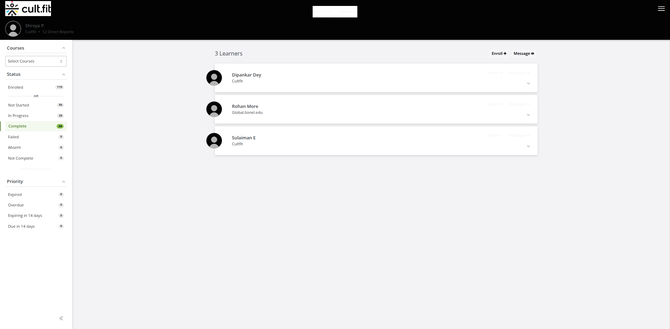
Figure 4b. The Complete status filter displays learners with completed course enrollments. Enrollment counts may differ from the number of individual learners shown.
Example: Finding Learners Who Have Not Started Training
- Open the Learners workspace.
- Select the applicable course from the Courses dropdown.
- Apply the Not Started status filter.
- Review learners with matching enrollments.
- Follow up with learners who may need assistance getting started.
Tip: Use the In Progress filter to monitor active learners and the Priority filters to identify overdue or upcoming training requirements.
7. Viewing Direct and Indirect Reports
Manager Experience uses reporting relationships to determine which learners a manager can view.
Direct Reports
Direct Reports are learners assigned directly to you as their manager.
These learners are included in your standard Manager Experience reporting scope.
Indirect Reports
Indirect Reports are learners who report to managers beneath you in your organization's reporting hierarchy.
If your permissions allow, you can enable Include Indirect Reports to expand your reporting visibility.
This is particularly useful for:
- Regional managers
- Multi-location supervisors
- Department leaders
- Managers overseeing additional managers
- Employer partner leaders responsible for multiple teams
How to Include Indirect Reports
- Navigate to Manager Experience → Overview.
- Locate the Include Indirect Reports option.
- Enable the setting to expand your Overview counts to include authorized indirect reports.
- Disable it to return to the direct-report view.
Important: When indirect reports are included, Overview cards display expanded totals but do not support the same direct drill-down into the Learners view.
Your visibility is limited to reporting relationships and permissions assigned to your account.
8. Taking Action: Enrolling and Messaging Learners
In addition to monitoring training progress, Manager Experience may allow authorized managers to enroll learners in courses and send messages directly to their teams.
These tools help managers coordinate training, encourage course completion, and support employees throughout their learning experience.
Note: Enrollment and messaging functions are only available when enabled for your assigned Manager Role.
A. Enrolling Learners in Courses
Managers with enrollment permissions can assign eligible training to authorized learners.
How to Enroll Learners
- Navigate to Manager Experience → Learners.
- Select Enroll + near the top of the learner list.
- In the Enroll Learners window, select the intended learners. You may choose available direct or indirect reports or select individual learners, depending on your permissions.
- Use the Courses dropdown to choose the training you want to assign.
- Review your selections.
- Click Enroll to submit the enrollment.
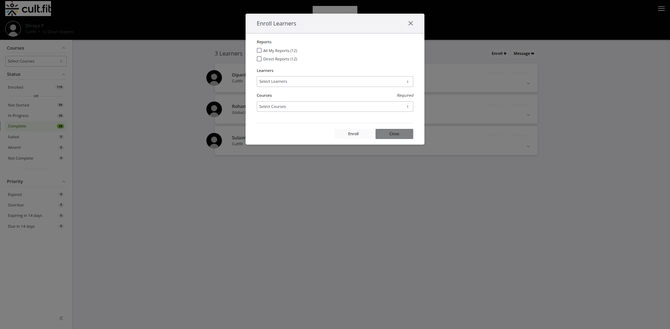
Figure 6. The Enroll Learnerswindow allows authorized managers to select learners and assign eligible courses.
Important Considerations
- Only courses configured for Manager Enrollment can be assigned.
- Your Manager Role determines which learners you can enroll.
- Course prerequisites, approval requirements, access dates, and session capacity restrictions still apply.
- Manager Experience does not allow managers to remove existing enrollments or re-enroll learners into courses they have already completed.
- Enrollments requiring administrator approval must be handled by an authorized administrator.
B. Messaging Learners
Managers with messaging permissions can communicate directly with their assigned learners through Manager Experience.
This can be useful for training reminders, completion encouragement, and communicating upcoming deadlines.
How to Message Learners
- Navigate to Manager Experience → Learners.
- Select Message near the top of the learner list.
- In the Message Learners window, choose your recipients from the available reporting population or select individual learners.
- Enter a Subject.
- Compose your message using the text editor.
- Review the recipients and message.
- Click Send.
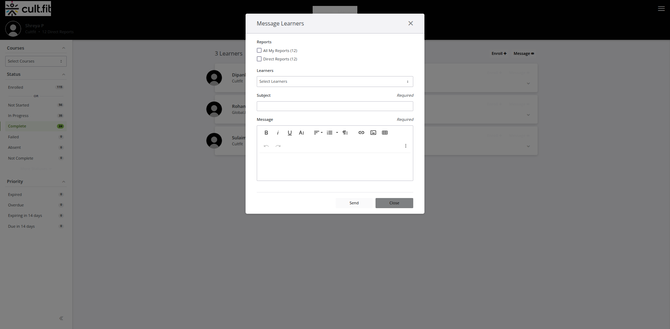
Figure 7. The Message Learners window allows authorized managers to select recipients, enter a subject, and compose a message.
Common Uses for Learner Messaging
Training Reminders
Remind employees about assigned courses they have not yet started.
Completion Encouragement
Follow up with learners who have started training but have not completed their courses.
Upcoming Deadlines
Notify learners about upcoming training requirements or certification expiration dates.
Next Training Opportunities
Encourage employees who have completed their current training to continue into their next available learning pathway.
Tip: Use the available Course, Status, and Priority filters to identify learners who may need follow-up. Confirm the intended recipients in the message window before sending.
What If Enrollment or Messaging Is Unavailable?
If these options are missing or unavailable, your Manager Role may not have the necessary permissions.
Contact Lionel Global Support if you believe your account requires additional access.
9. Recommended Training Review Process
Regular review of learner progress helps managers identify training barriers, provide timely support, and recognize completed milestones.
Recommended Weekly Review
- Open Manager Experience → Overview.
- Review enrollments marked Not Started or In Progress.
- Identify overdue or upcoming training requirements.
- Open the Learners workspace to review individual progress.
- Follow up with learners who need assistance.
- Use enrollment or messaging tools when appropriate and permitted.
Recommended Monthly Review
- Review overall training completion activity.
- Identify recurring delays or incomplete training.
- Compare progress across courses or teams.
- Recognize learners who have completed training.
- Identify opportunities for continued learning and development.
Program or Cohort Completion Review
At the end of a training program or cohort:
- Review completed enrollments.
- Identify any outstanding or unsuccessful training.
- Review available certificates and completion records.
- Confirm any additional training requirements.
- Plan appropriate next-step learning opportunities.
10. Frequently Asked Questions
What is the difference between the Admin Dashboard and Manager Experience?
The Admin Dashboard provides broader administrative reporting and training oversight. Manager Experience provides a more streamlined workspace for monitoring assigned learners and their individual progress.
Do I need Admin access to use Manager Experience?
No. Manager Experience can be enabled separately from administrative access.
Can I access both the Admin Dashboard and Manager Experience?
Yes. Both experiences may be available to the same user, depending on assigned permissions.
Can I see every learner in my organization?
Not necessarily. Your visibility is determined by your assigned Manager Role and reporting relationships. You may see direct reports and, when permitted, indirect reports.
Can I review an individual employee's course progress?
Yes. Open the learner's record within the Learners workspace to review their available course enrollments, completion statuses, and progress information.
Can I filter learners by an individual course?
Yes. Use the Course filter within the Learners workspace.
Why do the enrollment counts differ from the number of learners?
One learner may be enrolled in multiple courses. Enrollment counts reflect course enrollments and may therefore be higher than the number of individual learners.
Why does my Admin Dashboard show zero enrollments or no activity?
This may be related to the selected reporting period, department, group, available enrollment data, or your assigned permissions. Review your filters and contact support if the information appears incorrect.
Can I monitor training across multiple locations or teams?
Yes, when your reporting hierarchy and permissions include those learners.
Why does my Overview change when I enable Include Indirect Reports?
The reporting scope expands to include authorized indirect reports. In this mode, Overview cards do not support the same direct drill-down functionality.
Can I enroll learners in courses?
Yes, when your Manager Role permits enrollment and the selected course is configured for Manager Enrollment. Standard enrollment restrictions still apply.
Why can't I enroll learners in a particular course?
The course may not be configured for Manager Enrollment, or your account may lack the required permissions. Course prerequisites, enrollment approvals, and other restrictions may also apply.
Can I send messages to multiple learners at once?
Yes, when messaging is enabled for your Manager Role. The Message Learners window allows you to select multiple authorized recipients.
Can I remove an enrollment or re-enroll a completed learner?
No. These actions are not available within Manager Experience. Contact your learning platform administrator for assistance.
Can managers approve course enrollments that require approval?
No. Enrollment approvals reserved for administrators cannot be completed through Manager Experience.
What should I do if a learner is missing from my reporting view?
Contact Lionel Global Support to review the learner's reporting relationship and your account permissions.
11. Need Additional Assistance?
If you need help accessing your dashboards, monitoring learner progress, enrolling employees, sending messages, or resolving reporting issues, the Lionel Global Support team is available to assist.
Email: global-support@lionel.edu
When contacting support, please include:
- Your organization name
- The reporting tool or feature you're using
- A brief description of your question or issue
- Any relevant screenshots that may help explain the issue
Our team can assist with platform access, reporting visibility, learner assignments, and manager permissions.
Lionel University Global Learning Portal | Manager & Administrator Reporting